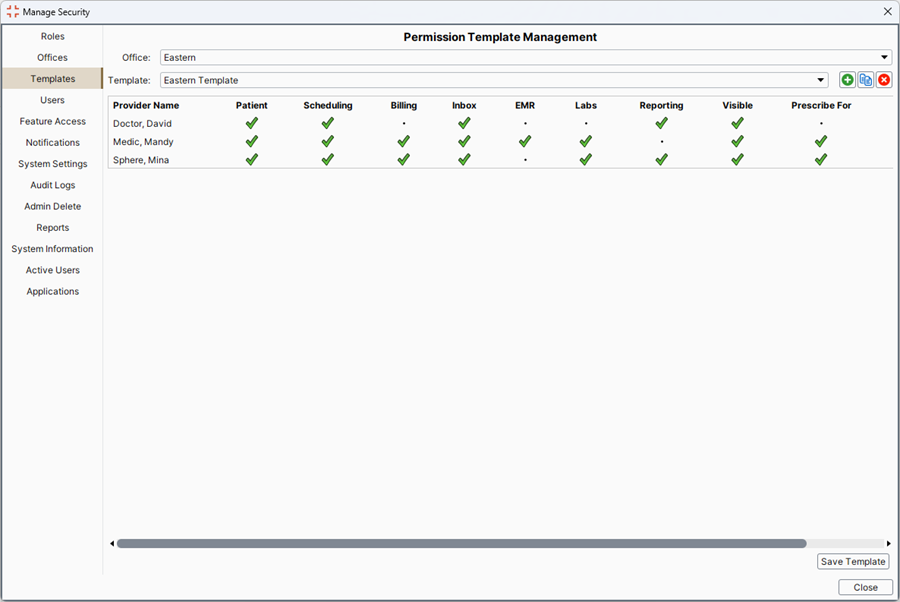
The Templates area of Manage Security is where you define permissions for specific templates areas. Permissions can be set for your providers in all of your offices. Expiry dates can be set for providers who are only there on a temporary basis.
Below is a description of what a user has access to when a specific permission is selected:
Patients: Controls providers the users have access to for some patient section related activities (e.g. assigning patients to a Provider's cohort).
Scheduling: Controls the option to schedule for selected providers.
Billing: Controls the option to bill or see bills for selected providers.
Inbox: Enables users to view anything from the Documents and Labs sections.
EMR: When selected users can view anything from the EMR that the Provider created (e.g.Notes, Letters or Forms).
Labs: Controls the option to view any labs attached to a Provider.
Reporting: Controls the option to have the selected Provider appear or not within reporting results.
Visibility: Enables the selected Provider appear within dropdown boxes in Accuro.
Prescribe For: Gives the user the ability to prescribe for a Provider.
 to the right of the Office field and select the appropriate office from the list displayed.
 to the right of the Template field.
 is replaced with a
  . Repeat as necessary for all providers.
 and select a date from the calendar.
to the right of the Office field and select the appropriate office from the list displayed. to the right of the Template field and select the appropriate template from the list displayed. is replaced with a . If you want to remove permissions, click the and it is replaced with a . Repeat as necessary for all providers. and select a date from the calendar.
to the right of the Office field and select the appropriate office from the list displayed. to the right of the Template field and select the appropriate template from the list displayed.
and select a date from the calendar.
to the right of the Office field and select the appropriate office from the list displayed. to the right of the Template field and select the appropriate template from the list displayed. is replaced with a . If you want to remove permissions, click the and it is replaced with a . Repeat as necessary for all providers. and select a date from the calendar.
to the right of the Office field and select the appropriate office from the list displayed. to the right of the Template field and select the appropriate template from the list displayed. . to the right of the Office field and select the appropriate office from the list displayed. to the right of the Template field and select the appropriate template from the list displayed.
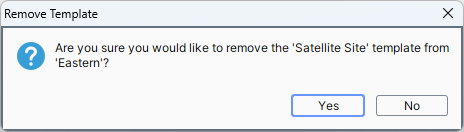
 . A delete confirmation message is displayed:
 to the right of the Office field and select the appropriate office from the list displayed. to the right of the Template field and select the appropriate template from the list displayed. and select a date from the calendar.