Offices
In the Offices area of Accuro, setup your office(s). This is a task that is done when you first get Accuro. Updates will only need to be made if you move offices, change a phone number, e-mail address or website address.
In Offices you also assign providers to a specific office and set up the restricted documents directory on the preferences tab.
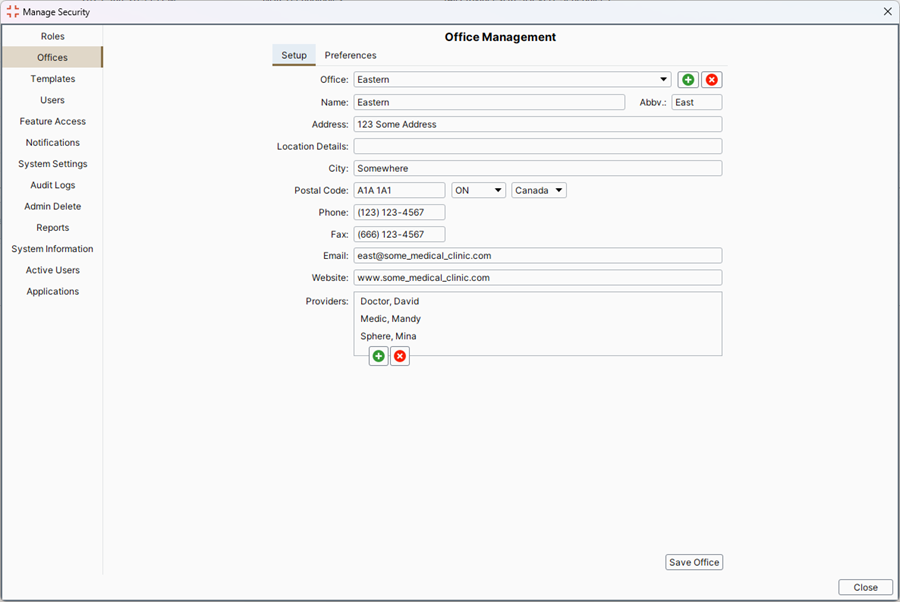
On this tab in Manage Security a user can select the office by clicking the arrow to the right of the Office field. Then User the fields below to enter the office information. Use the add and remove buttons in the Providers area to add and/or remove providers from each office, as required.
Note: Remember to click the Save Office button to save your changes.
Add an Office
- Press and release the Alt button on the keyboard, click Users and select Manage Security from the list displayed.
- Click the Offices tab on the left-hand side of the window.
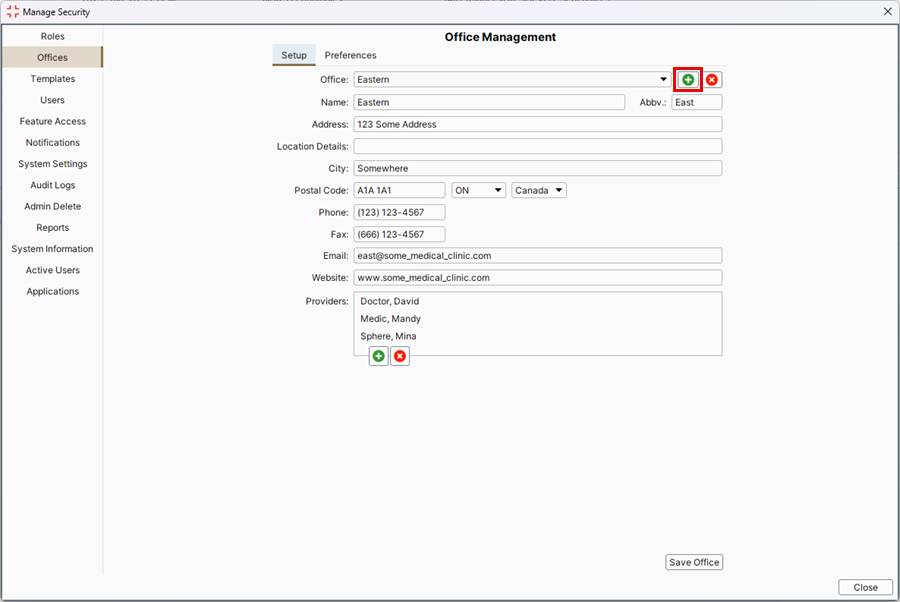
- Click
 to the right of the Office field. Complete all the information, as required.
- Click Save Office to save all your changes.
Edit an Office
- Press and release the Alt button on the keyboard, click Users and select Manage Security from the list displayed.
- Click the Offices tab on the left-hand side of the window.
- The Setup tab is displayed. Click
 to the right of the Office field and select the office from the list displayed.
- Edit your details, as required.
- Click Save Office to save all your changes.
Remove an Office
- Press and release the Alt button on the keyboard, click Users and select Manage Security from the list displayed.
- Click the Offices tab on the left-hand side of the window.
- The Setup tab is displayed. Click to the right of the office field and select the office to be deleted from the list displayed.
- Click
 .
.
- A message asking you to confirm you are deleting this office is displayed, click Yes.
- Click OK to confirm that the office has been removed.
Add a Provider to an Office
- Press and release the Alt button on the keyboard, click Users and select Manage Security from the list displayed.
- Click the Offices tab on the left-hand side of the window.
- Click at the bottom of the Providers area of the window. The Providers Search window is displayed.
- Complete all the information for your new Provider.
- Click Add to save the new Provider details.
- Click Select to add this Provider to your office.
- Click Save Office to save your changes.
Remove a Provider From an Office
WARNING: Use Remove/Delete a Provider from an office with extreme caution. This will remove EVERYTHING they have ever done to any patients (labs, bills, past appointments, notes, etc.). If in doubt, please consult with Accuro Client Services first.
- Press and release the Alt button on the keyboard, click Users and select Manage Security from the list displayed.
- Click the Offices tab on the left-hand side of the window.
- In the Providers section, click to select the Provider to be deleted.
- Click at the bottom of the Providers area of the window.
- A message asking you to confirm you are deleting this Provider is displayed, click Yes.
The Provider you selected has been deleted from your office.