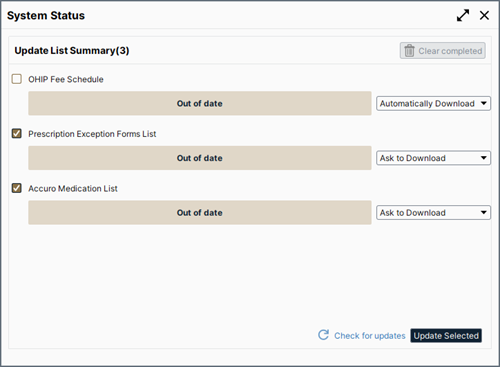
The System Status window currently displays all available Update Lists under the Update List Summary section. Users have the option of updating selected lists or Check for Updates to see if any new updates are available. The System Status window also displayed the status of some of the background tasks in progress under Background Process
A user can run the update at any time while they're working in Accuro by clicking on the System Status icon at the very top-right of the Accuro window.
Additionally, grey icon  will be displayed when the download is in progress and green icon
  will be displayed when the download is complete.
Note: Once one user downloads an Update List, it takes effect for all users on the same database. If another user is already downloading the update List, others will see the message, "Another user is currently running update list updates. Please try again later.".
Some of the updates will update immediately without any user action. This will happen if a priority of Automatically Download is set and the file has never been downloaded before or if Automatically Download is set and is out of date.
For the updates that do not start immediately, a user can select the appropriate Update checkboxes in the System Status window and click the Update Selected button.
To modify a priority for the updates, click the dropdown  to the right of the item and select an appropriate priority. The options are:
If a user is exiting Accuro and updates are still running in the background, a warning message is displayed. When switching between users and offices, if the update was running for the previous office/user it continues to show the update progress for the new office/user. There are three states: