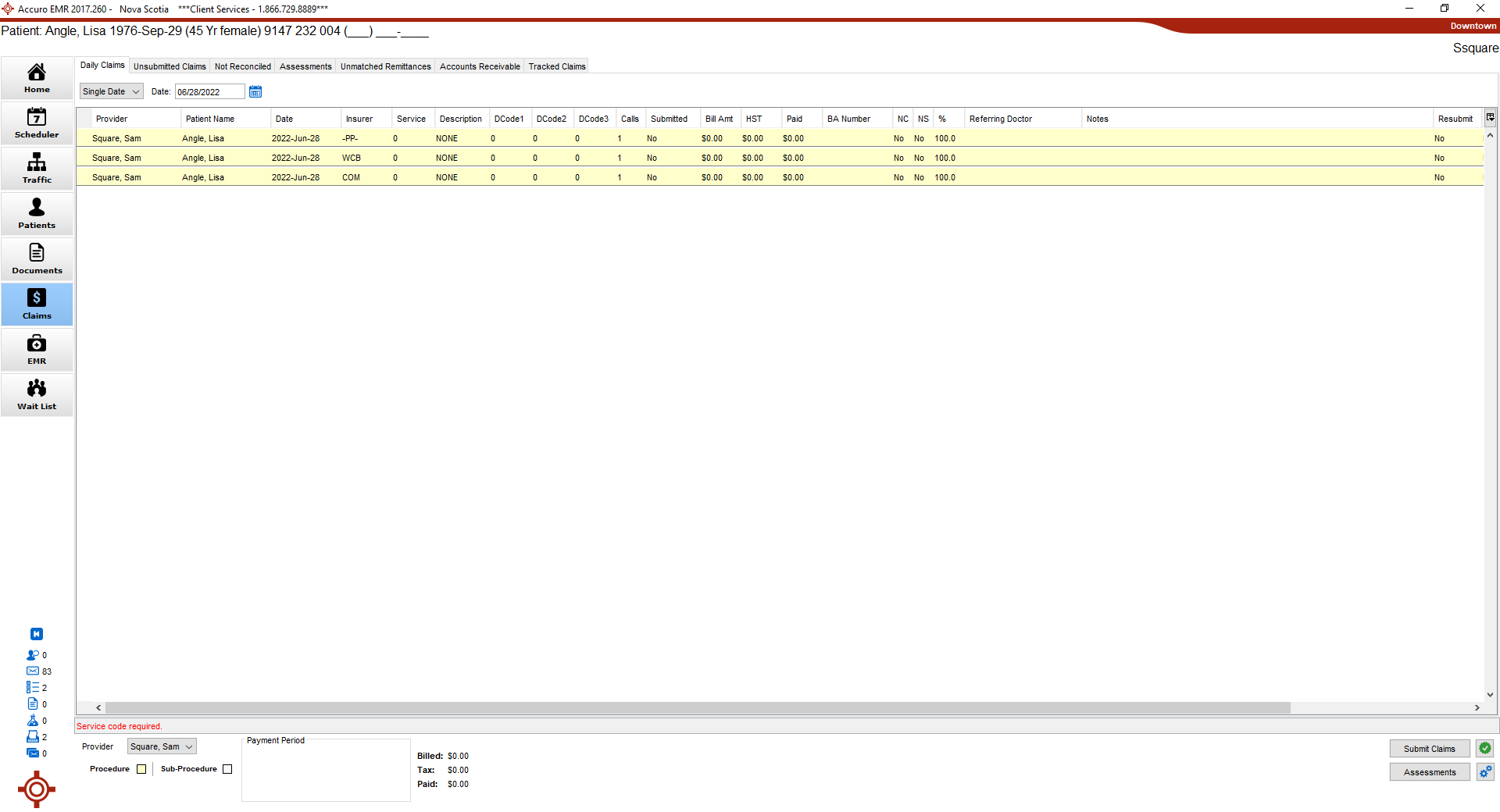
The Daily Claims tab shows all claims for today and the Provider selected. This includes both submitted and unsubmitted claims, claims made from appointments and walk-in claims, GOV, WCB, and private insurer claims.
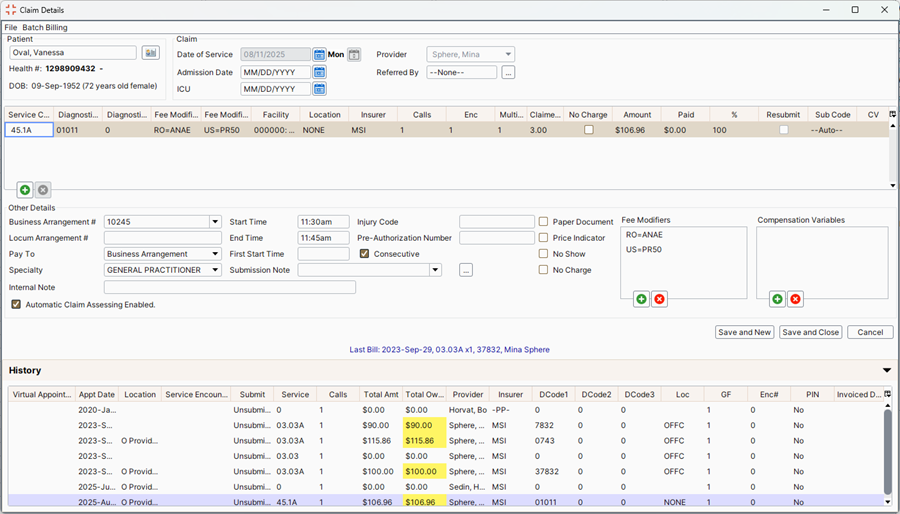
Complete the Claim Details Window
Patient Information Section
 to change or add Referred By information, if required.
Claim Table Information
To make entering information quicker and easier most information is now entered in the claim table.
 and select from the list displayed.
Other Details
and select the BA# from the list displayed. and select the Locum BA# from the list displayed, if applicable. and select the Pay To from the list displayed. and select a note from the list already set up in your clinic. and select the Speciality from the list displayed. and select a Options from the list displayed.When billing time based codes, ensure that the Claim Details have the appropriate amount of multiples based on the Start and End times before submitting.
For Procedures that require face to face time, enter the applicable time for the billable amount of multiples in the Claim Details and verify the multiples. See the Physician's Manual for applicable procedures.
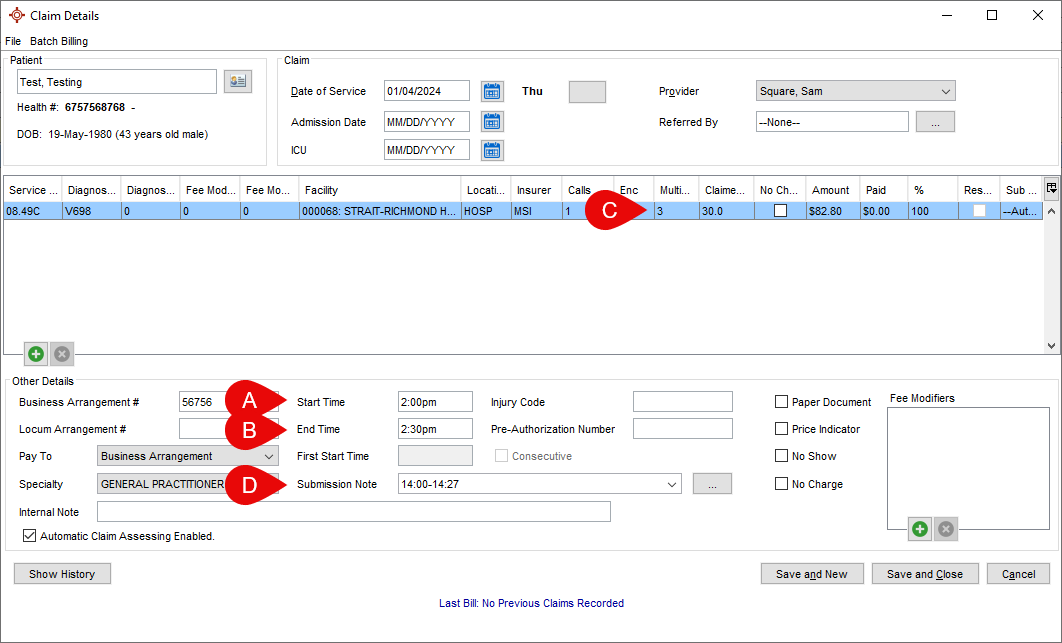
A: Enter Start Time with patient.
B: Enter End Time for appropriate applicable multiples for the Procedure.
C: Verify that the multiples are accurate for the Procedure in the Multiples column.
D: In the Submission Note field enter in face to face time with the patient.
Tip: Time spent with the patient can be tracked in the Encounter Note by pressing the F12 button on the keyboard to add a time stamp when seeing the patient and pressing F12 again when the patient leaves.
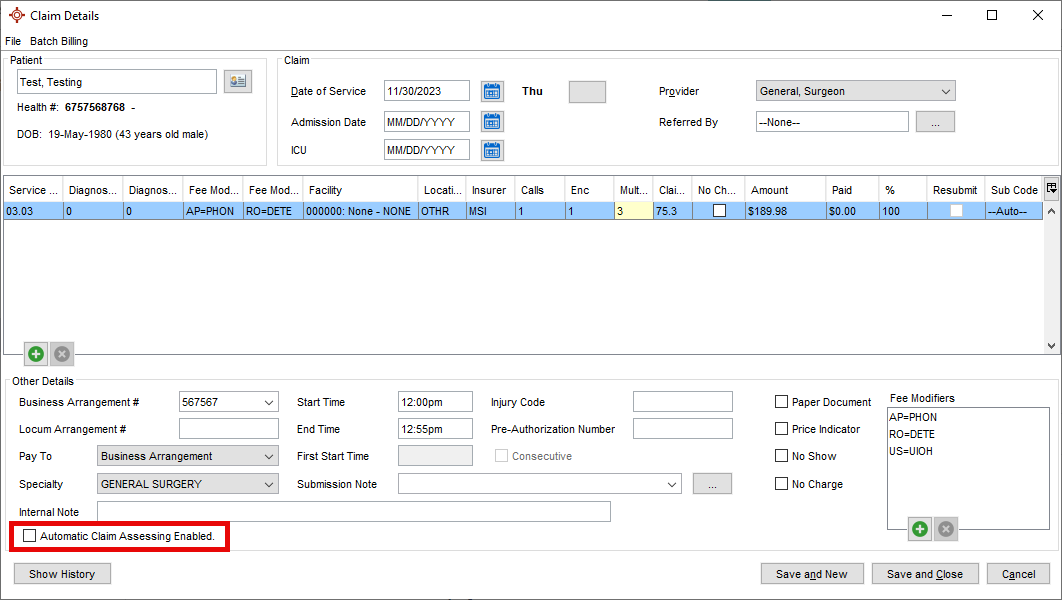
The Automatic Claim Assessing check box, when enabled, allows Accuro to automatically calculate the Multiples, Claimed Units, and Amount for the selected Bill on the Claim Details. The setting can be enabled or disabled per Bill in the Claim Details window. Automatic Claim Assessing is enabled by default.
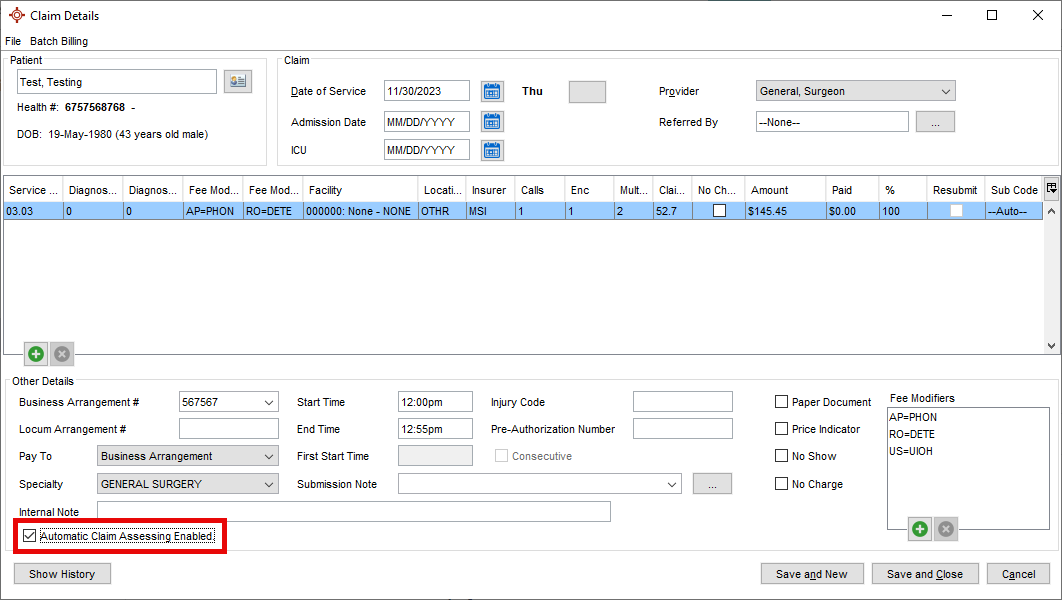
Note: When enabled the Automatic Claim Assessing will overwrite any manual changes to Multiples, Claimed Units, and Amount that were manually updated when it was disabled.
When Automatic Claim Assessing is disabled, the Multiples, Claimed Units, and Amount will no longer be calculated by Accuro and can be manually entered.
Please refer to the Physician's Manual to understand which Multiples and Claimed Units to submit.