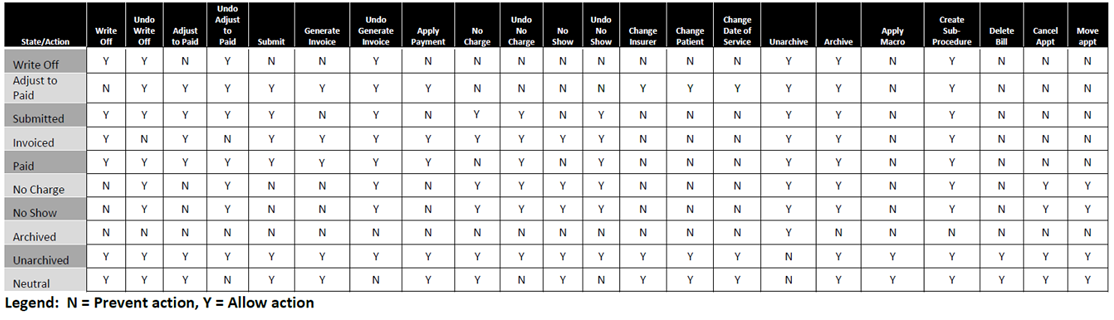
Changes that users are allowed to make to bills have caused some accounting issues when trying to balance against reports. Billing controls were introduced to prevent inappropriate editing of bills by introducing tighter financial controls and avoiding any potential for missing revenue.
The areas of Accuro affected by the billing controls are claims, appointment history (F4), A/R by Insurer, Claim Details, Scheduler, EMR Day Sheet, Appointment Details and Private Payments.
Billing controls ensure that the financial data contained in the reports remains accurate and unintentional errors are no longer allowed to occur. This gives the Billing Reports greater reliability and save time for clinic billing staff in tracking down and correcting A/R issues.
With billing controls there are no immediately visible changes to Accuro. The changes become visible once users with billing permissions try to perform actions on a claim and they cannot due to the billing controls.
The billing matrix displayed below is a comprehensive list of what can and cannot be performed on a bill.
Note: Many of the "Undo" actions are to allow users to reverse actions that had already been done on bills before the billing controls were introduced.
Billing Matrix Exception:
An appointment can be moved to another date if the appointment has already been invoiced as long as the date is not in the past (PP appointments only). This update is to allow users to make tentative appointments, take a deposit for the appointment and then be able to adjust the appointment date and time, if required.
A new right click menu option allows users to edit patient demographics from within the claims section (available on all tabs). When selected this opens up the Quick New Patient Window with the claim’s patient details loaded. Users can edit the details and then save the changes without having to leave the Claims area of Accuro.
To access Edit Patient Demographics option follow the procedure below:
 on the Accuro Navigation bar.
For clients only interested in viewing bills that have been submitted, invoiced or paid in their accounts receivable report there is a "Only Include submitted" checkbox that can be used to ensure that all other bills are not displayed in the report. When selected this system setting ensures that bills that have not been submitted, invoiced or have at least one payment on them are not included in the accounts receivable reports, A/R by Insurer or other places Accounts Receivable is shown in Accuro.
