Labels
This is the area of Accuro where you set up your label printing.
This section is accessible though the Accuro Start Menu > File > User Preferences > Display > Labels.

Default Printer: Select the label printer from the list displayed.
Paper: Select the paper type in the dropdown or Manage the type of paper with the Manage button.
Orientation: Select the the label alignment from either Vertical or Horizontal.
Status Bar Label: From the dropdown, select what label prints when double-clicking on the Demographic Status Bar.
Individual Label Preferences: In this area you set your preferences for each label type.
Label: Select the label type from the list displayed before adjusting the label settings.
Default Print Count Settings: How many copies of the label require printing, the default is one.
Prompt for Number of Copies to Print: If this checkbox is selected, the user is prompted for the number of copies of the labels.
Center Label: Select to center the text within the Label.
Apply to Label: Click this button when you have completed your settings for the selected Label type.
Optional Label Printing Module
An optional Label Printing module is available in Accuro. If clinics require this module it has to be enabled by Accuro. Once the module is enabled users can use it to set up their labels, margins etc as required.
Set up the Optional Label Printing Module
- Press and release the Alt button on the keyboard, click File and select User Preferences from the list displayed.
- Click the Label button.
- Click the Ellipses button (three dots) and select the default label printer. The printer paper types are loaded for the printer you selected (plus any custom ones that may have been created if this is not your first time in this module).
- Select the Paper from the droplist. (To create a paper type, see the procedure below this one.)
- Click the Orientation droplist and select from the list displayed. Some clients find that Reverse Landscape works best for some labels because of the margin settings.
- Click Apply and OK to save your settings.
Note: If you create new paper types they can be seen by all users but the actual paper selection and orientation are only set for the current user.
Create a Paper Type in the Optional Label Printing Module
- Press and release the Alt button on the keyboard, click File and select User Preferences from the list displayed.
- Click the Labels button.
- Click the Manage button to the right of the Paper dropdown.
- Click the Add button.
- Type in a name for your paper.
- Specify the Height and Width, in inches.
- Type in the values for the margins.
- Click OK to create.
Printing a Label Using the Optional Label Printing Module
- Press and release the Alt button on the keyboard, click File and select Print Labels from the list displayed.
- Select the appropriate label from the list displayed. The Print Label window is displayed.
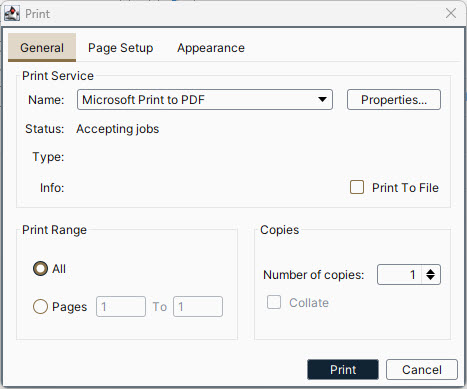
- Change the Printer, Paper, Orientation, etc. in this window using the General, Page Setup, and Appearance tabs, if required. These changes are only for the label being printed and do not update User Preferences.
- Click Print to print the label.