Apply a Macro to a Claim
- Click the Claims button
 on the Accuro Navigation bar.
- Click the Daily Claims or Unsubmitted Claims tab.
- Right-click on the appropriate claim and select Apply Macro from the list displayed. The Macro Manager window is displayed.
- Click to select the appropriate Macro and click the Select and Apply button. The macro you selected has been applied to the claim.
View or Change a Claim's Referring Provider
- Click the Claims button on the Accuro Navigation bar.
- Click to select the appropriate tab.
- Double-click on the claim to open up the Claim Details window.
- Click the dropdown list
 to the right of Referred By and select the correct Referring Provider from the list displayed.
- Click Save and Close to save your changes and close the window.
Copy a Pre-Existing Claim
- Click the Claims button on the Accuro Navigation bar.
- Click the Unsubmitted Claims tab.
- Right-click on the appropriate claim and select Copy Claim from the list displayed. The claim you selected is copied and the copy of the form is opened.
- Update the form as required.
- Click Save, to save this new claim form.
Set the Specialty for a Claim
- Click the Claims button on the Accuro Navigation bar.
- Click to select the appropriate tab.
- Double-click on the claim to open up the Claim Details window.
- Click the dropdown list and select the Specialty from the list displayed.
- Click Save and Close to save your changes and close the window.
Change the Provider Displayed
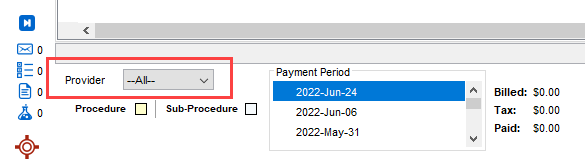
To change the Provider, click the dropdown list at the bottom-left of the window and select a different Provider from the list displayed.
View Claim Details
- Click the Claims button on the Accuro Navigation bar.
- Click to select the appropriate tab.
- Right-click on the claim and select Claim Details.
Copy a Pre-Existing Claim
- Click the Claims button on the Accuro Navigation bar.
- Click the Unsubmitted Claims tab.
- Right-click on the appropriate claim and select Copy Claim from the list displayed. The claim you selected is copied and the copy of the form is opened.
- Update the form as required.
- Click Save, to save this new claim form.
Delete a Procedure
Procedures that were not created from an appointment can be deleted. But to delete a procedure created from an appointment, you must first cancel the appointment.
- Click the Claims button on the Accuro Navigation bar.
- Click the Unsubmitted Claims tab.
- Right-click on the appropriate claim and select Delete Procedure from the list displayed. The procedure has been deleted.
Set the Location for a Claim
- Click the Claims button on the Accuro Navigation bar.
- Click to select the appropriate tab.
- Double-click on the claim to open up the Claim Details window.
- Click the dropdown list to the right of the Location field in the Details section and select the correct Location from the list displayed.
- Click Save and Close to save your changes and close the window.
Mark a Claim as Invoiced
- Click the Claims button on the Accuro Navigation bar.
- Click the Daily Claims or Unsubmitted Claims tab.
- Right-click on the appropriate claim and select Options from the list displayed.
- Select Mark as Invoiced.
- Click to select an invoice date from the calendar displayed.
Add a Sub-Procedure to a Claim
- Click the Claims button on the Accuro Navigation bar.
- Click to the Daily Claims or Unsubmitted Claims tab.
- Right-click on the appropriate claim and select New Procedure. This adds a new procedure underneath the selected claim.
- Complete the claim details, as required.
Print Payment Period Report (ON)
A payment period report can be printed for a selected Provider.
- Click the Claims button on the Accuro Navigation bar.
- Select the appropriate Provider.
- Select the payment period. The payment period information is displayed in the message window.
- Click the Printer button.
Approve Claims
- Click the Claims button on the Accuro Navigation bar. Submission management can be accessed from any tab in the claims section.
- Click the Approve Claims button
 located at the bottom-right of the window.
- A Submissions warning window is displayed. This outlines errors that need to be fixed before claims can be made.
- Click OK to close the window.