 on the Navigation bar. on the Navigation bar.
There are several ways to open the Claim Details window.
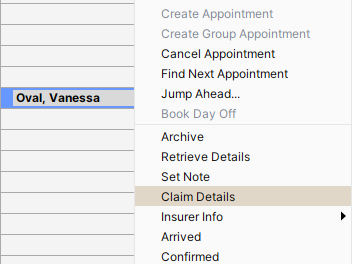
To open claim details from an appointment in the scheduler
Point to the appointment in the Scheduler.
Right-click and select Claim Details.
To open claim details for an existing claim in the claims section
Double-click on an existing claim.
Or:
Right-click on an existing claim and select Claim Details.
To open claim details for a new claim from anywhere in Accuro
Press Ctrl+B.
To fill out the claim details window
If a claim has been opened from an appointment, the patient will already be loaded. If you are creating a new bill from Daily Claims, you need to load a patient using the Search Tool.
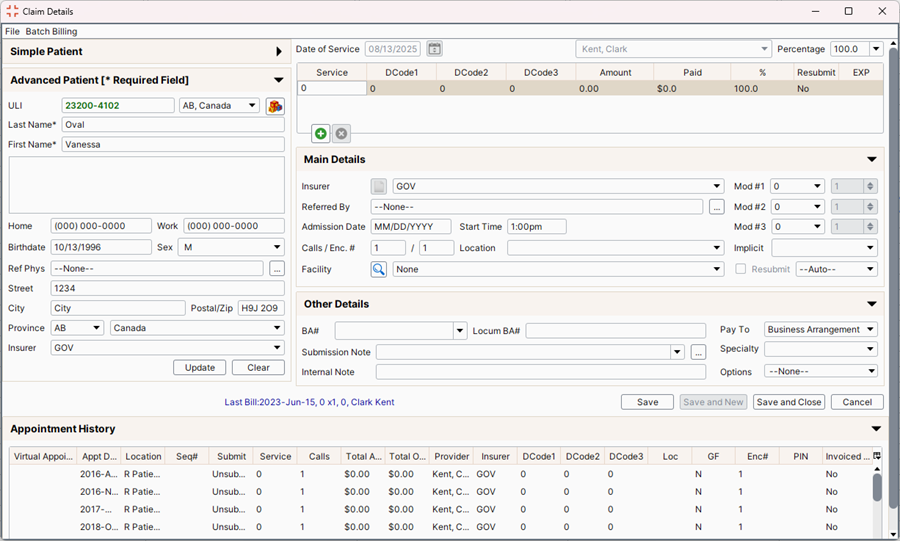
Ensure the patient details are correct.
Ensure the Date of Service and Provider are correct.
Add a procedure and any necessary sub-procedures for the claim.
To add a procedure
Double-click in the space under Procedure to highlight it.
Type in either a procedure code, or a keyword which can be searched on in the procedure code's description.
You can also right-click in the space under Service and select Search Procedure Code. This opens a Procedure Code search window.
Select the procedure from the dropdown list.
Double-click on the space under Diagnosis to highlight it.
Type in either a diagnostic code, or a keyword which can be searched on in the diagnostic code's description.
You can also right-click in the space under Service and select Search Diagnostic Code. This opens a Diagnostic Code search window.
You can mark the procedure as No Charge or No Show by clicking on the corresponding checkbox.
To add a sub-procedure
Click the Add button  to create a new procedure line.
Follow the steps for adding a procedure above.
Fill out the rest of the claim and insurer details.
Add or change the Referred From Provider if necessary.
Select the appropriate Insurer if different from the patient's default.
Select a Start Time and End Time if required (for hospital billing).
Select a Location from the dropdown list if necessary.
Type in an Internal Note if you need to remember any additional information about the claim.
Add an MCIB Note macro if required.
Select a billing Percentage if different from the default.
Select a First Hospital DOS and a Last Hospital DOS if required.
If resubmitting, click the checkbox beside Resubmit.
If EMR Fee is requested, click this checkbox.
Click Save, Save and New, or Save and Close to save the claim.
Press and release Alt button on the keyboard or click the Accuro Start Menu Button  , click Billing and select Default Sub Percent from the list displayed.
Click to select from 100%, 75%, 50% or 25%, as required.
Note: The default is 100%.
Press and release Alt button on the keyboard or click the Accuro Start Menu Button , click Billing and select Billing Rules from the list displayed. The Billing Rules window is displayed.
Click the Add button . The Billing Rule window is displayed.
Click the  and select the type of rule from the list displayed and click OK.
Complete the Edit Billing Rule window, as required. The options displayed here are dependent upon the type of rule selected.
To save your changes, click OK.
Press and release Alt button on the keyboard or click the Accuro Start Menu Button , click Billing and select Billing Rules from the list displayed. The Billing Rules window is displayed.
Click to select the rule being edited and click the Edit button  .
.
Edit the Billing Rule window as required. The options displayed here are dependent upon the type of rule selected.
To save your changes, click OK.
Press and release Alt button on the keyboard or click the Accuro Start Menu Button , click Billing and select Billing Rules from the list displayed. The Billing Rules window is displayed.
Click to select the rule being deleted and click the Delete button  .
.
A confirmation message is displayed, click Yes to delete.
Click OK to close the Billing Rules window.
Click the Claims button on the Navigation bar.
Click the Daily Claims tab.
Right-click on the appropriate claim and select New Bill from the list displayed. A blank Claim Details form is displayed.
Note: Alternatively click Billing on the Menu bar and select New Bill from the list displayed.
Complete the form as required.
Click the Claims button on the Navigation bar.
Click the Daily Claims or Unsubmitted Claims tab.
Right-click on the appropriate claim and select New Procedure from the list displayed. A new Sub-Procedure Claim form is displayed.
Note: Alternatively click Billing on the Menu bar and select New Procedure from the list displayed.
Complete the form as required.