Types
The Types tab is used to manage appointment types for Accuro and Medeo Booking Requests.
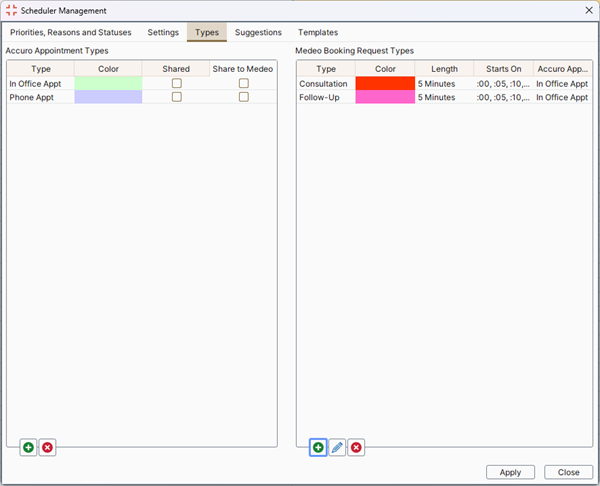
Accuro Appointment Types are used to describe the type of appointment for Accuro.
Medeo Booking Request Types are used to describe the type of appointment for Medeo Booking Requests.
Add an Appointment Type
- Press and release the Alt button on the keyboard, click Scheduler and select Scheduler Management from the list displayed.
- Click the Types tab.
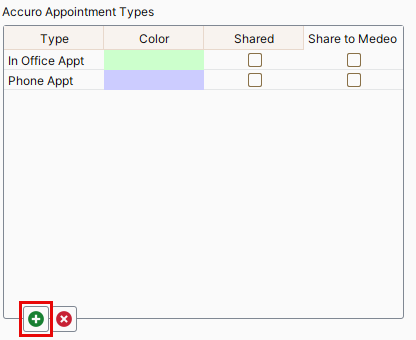
- Click the Add button
 to create a new line under Accuro Appointment Types.
- Click in the line under the Type column, and enter a type name.
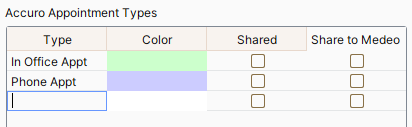
- Click in the line under Colour, select a colour from the palette, and click OK.
- For multiple offices in Accuro, Appointment Types can be shared between them by clicking the checkbox under the Shared column.
- Click Apply.
Add a Medeo Booking Request Appointment Type
- Press and release the Alt button on the keyboard, click Scheduler and select Scheduler Management from the list displayed.
- Click the Types tab.
- Click the Add button to create a new line under Medeo Booking Request Types.
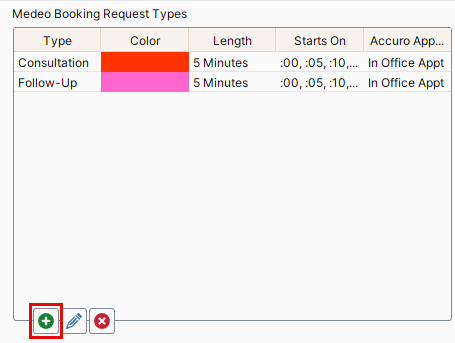
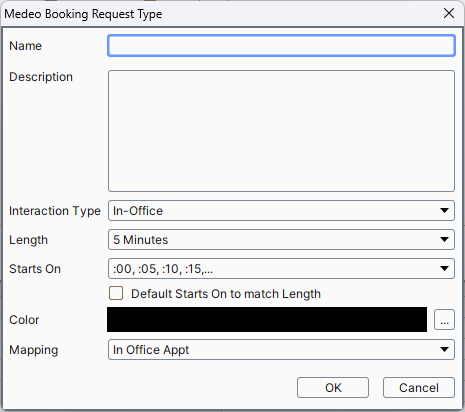
- Type a Name for the Booking Request - this will appear on the clinic's Medeo Online Booking site for patients to select.
- Write a Description for the Booking Request - this will appear on the clinic's Medeo Online Booking site.
- Select the Length of the appointment request.
- Select the time the appointment request can start on under the Starts On dropdown.
- Select a Color for the request type by clicking
 .
.
- Select which Accuro appointment type (which appears in the Accuro Appointment Types column) under Mapping to match this request type to.
- Click OK
 .
.
Edit an Appointment Type
- Press and release the Alt button on the keyboard, click Scheduler and select Scheduler Management from the list displayed.
- Click the Types tab.
- Edit any of the three fields of an Accuro Appointment Type by clicking on them and making necessary changes.
- Click Apply to save any changes.
Edit a Medeo Booking Request Type
- Press and release the Alt button on the keyboard, click Scheduler and select Scheduler Management from the list displayed.
- Click the Types tab.
- Click the desired Medeo Booking Request Type and click the Edit button
 .
.
- Make the necessary changes and click OK .
- Click Apply to save any changes.
Delete an Appointment Type
- Press and release the Alt button on the keyboard, click Scheduler and select Scheduler Management from the list displayed.
- Click the Types tab.
- Click on a Appointment Type to select it.
- Click the Remove button
 .
.